![ID-logo-colour_version_2.png]](https://answers.id.com.au/hs-fs/file-2628100188-png/images/ID-logo-colour_version_2.png?height=40&name=ID-logo-colour_version_2.png)
This article is for IT administrators who manage staff identities in Microsoft Entra ID (formerly Azure Active Directory). It explains how to grant admin consent so staff can use Microsoft sign-in with .id tools.
Background
Logging in with Microsoft is an option on .id tools for users with a Microsoft work account. For most organisations, this works without the need for configuration at the client end. Some organisations, however, need to grant specific admin consent.
In these cases, users attempting to log in using Microsoft will receive a message referring to the need for admin approval.
Before you begin
You'll need:
- A Global Administrator or Cloud Application Administrator role in Microsoft Entra ID.
- Access to https://portal.azure.com.
- Application (client) ID: 3c6f062c-b896-4dcc-b4af-39c90ccd6bd1
If your organisation's process requires you to log or document app consent decisions, you may also need these details about the .id consulting app:
- Application name: .id consulting
- Company name: ID Consulting Pty Ltd
- Reason for access: Suite of applications supplied by ID CONSULTING.
- Homepage URL: https://www.id.com.au
Steps
Grant consent via the Azure portal
1. Sign in to the Azure portal
Go to https://portal.azure.com and sign in as a Global Administrator or Cloud Application Administrator.
2. Open Microsoft Entra ID
From the left-hand menu, select Microsoft Entra ID (formerly Azure Active Directory).
3. Open Enterprise applications
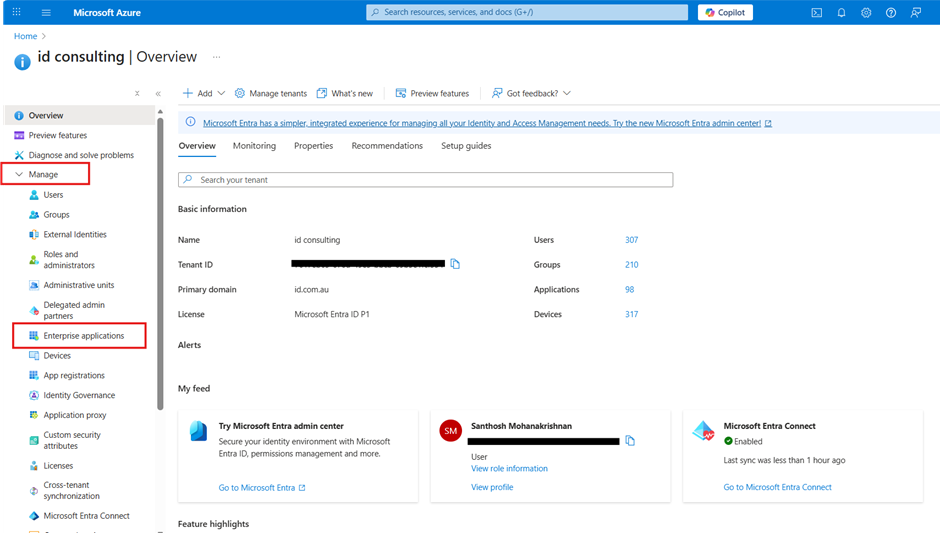
Under 'Manage' in the left-hand menu, click 'Enterprise applications'.
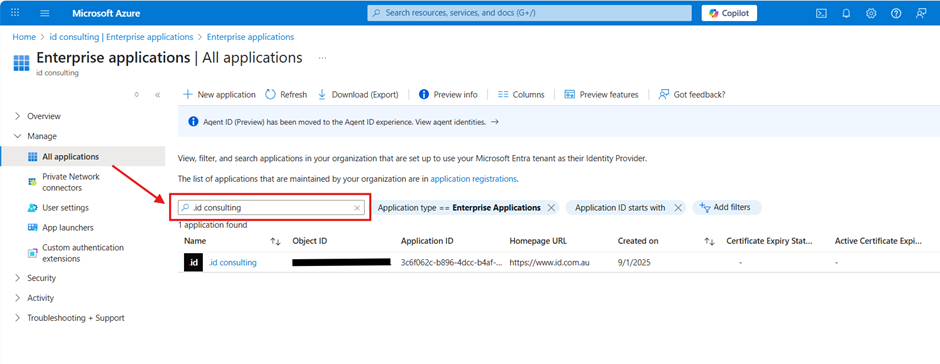
4. Find '.id consulting' in the list
In the All applications search box, type '.id consulting' and select the matching result.
NB: If you cannot locate '.id consulting', please follow the instructions below to grant consent directly.
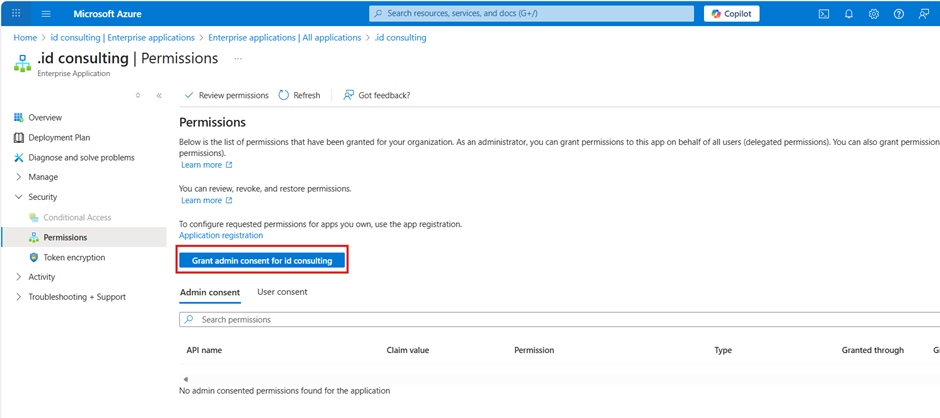
On the .id consulting application page, select 'Permissions' under 'Security' in the left-hand menu. Click the 'Grant admin consent for .id consulting' button and follow the prompts to confirm.
6. Verify consent has been granted.
The permissions list now shows the consent status as 'Granted for [your organisation name]'.
Grant consent directly
A Global Administrator or Cloud Application Administrator can register and consent to the application.
1. Open a prviate browser
Open a private or incognito browser window, to be sure you're signed in with your administrator account and consenting for the correct tenant.
2. Go to the admin consent link
Go to: https://login.microsoftonline.com/common/adminconsent?client_id=3c6f062c-b896-4dcc-b4af-39c90ccd6bd1
3. Sign in
Sign in with your Global Administrator or Cloud Application Administrator account.
4. Accept
Review the permissions requested by '.id consulting' and select 'Accept'.
Consent now applies to your whole organisation, and '.id consulting' will appear under Enterprise applications. Staff can sign up and log in with their Microsoft account; no further action is needed for each user.
If your browser finishes on a blank or error page, the consent has usually still been recorded. Confirm by following steps 2–6 in the 'Grant consent via the Azure portal' steps and checking that the Permissions page shows 'Granted for [your organisation name]'.
What to expect
Once consent is granted, staff can use their existing Microsoft account to sign up and log in to .id tools. No further action is needed from IT for each user.
Troubleshooting
- If these instructions don't help, contact us at support@id.com.au, including any relevant screenshots.
- If you don't have the required role, ask a colleague with Global Administrator or Cloud Application Administrator privileges to complete these steps on your behalf.