![ID-logo-colour_version_2.png]](https://answers.id.com.au/hs-fs/file-2628100188-png/images/ID-logo-colour_version_2.png?height=40&name=ID-logo-colour_version_2.png)
This article is for Placemaker customers.
Using a Local Government product such as Community Profile? Export options differ by product. See: How do I export data from an .id product?
Use this guide to export charts, tables and data from the Insights page in Placemaker
Before You Begin
You need the Insights page open for a catchment. If you have not built a catchment yet, see How to create a catchment in Placemaker.
Steps
- Open the Insights page: open a catchment and click 'View insights'. See How to generate insights for a catchment in Placemaker.
- Find the section you want to export: the Insights page shows data as charts, tables and maps, each in its own section.
- Click the download icon in the top right of that section.
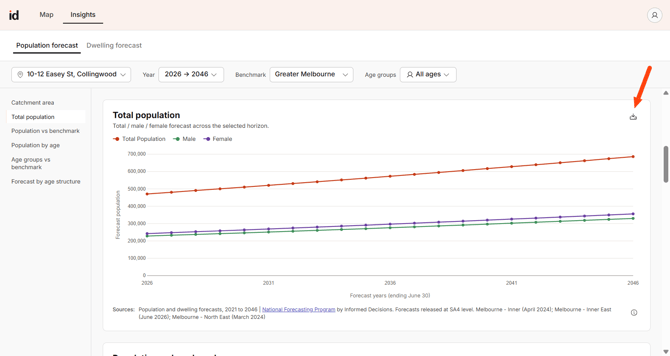
- Choose a format. The options depend on the section:
- Charts: 'Download PNG' saves an image of the chart, or 'Download CSV' saves the underlying data.
- Tables: 'Download CSV' saves the table data.
- Maps, for example Catchment area: 'Download PNG' saves an image of the map.
Note: downloaded images include the chart title, legend and source attribution. Do not remove Informed Decisions branding or the source line from exported files.
What to Expect
Files download to your browser's default download location. PNG files save as images you can paste into a report or presentation. CSV files save the data for use in a spreadsheet.
Troubleshooting
- No download icon on a section: make sure a catchment is open and you are on the Insights page.
- You can't find the downloaded file: check your browser's default download location.
- You want the whole Insights page as a PDF: Placemaker does not have a print to PDF option. A browser extension such as Awesome Screenshot can capture a scrolling page.