![ID-logo-colour_version_2.png]](https://answers.id.com.au/hs-fs/file-2628100188-png/images/ID-logo-colour_version_2.png?height=40&name=ID-logo-colour_version_2.png)
Use this guide to change the map style shown beneath your data in Placemaker.
Before You Begin
You need to be logged in to Placemaker with the map open.
Steps
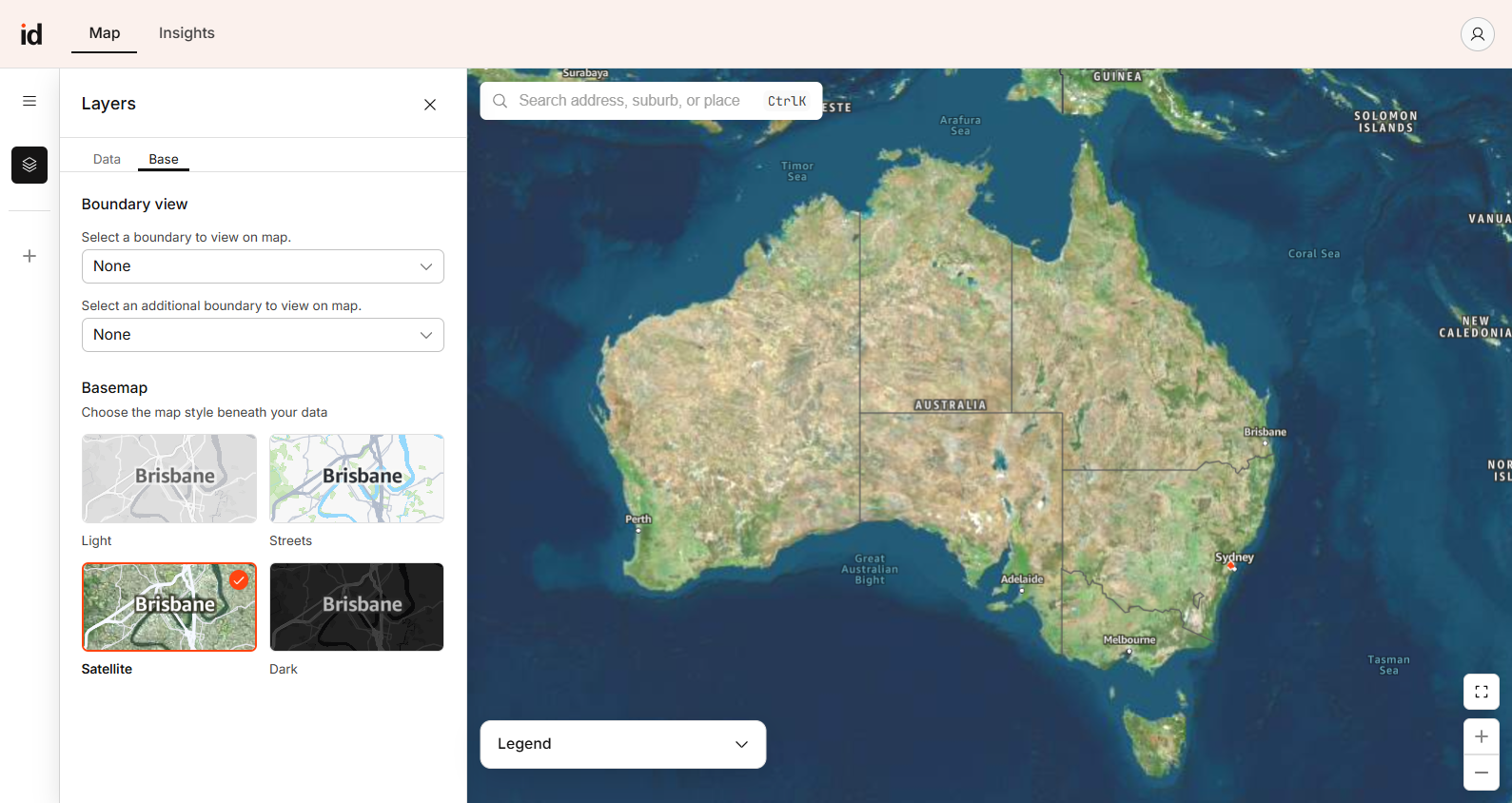
- Open the Layers panel: on the left toolbar, click the Layers icon.
- Open the Base tab: at the top of the panel, click 'Base'.
- Choose a basemap: under 'Basemap', select a style. The map updates immediately.
- Light: minimal greyscale map. Good when a data theme is applied and you want the data to stand out.
- Streets (default): street map with roads and place names. Good for navigation and building catchments.
- Satellite: aerial imagery. Good for seeing the physical landscape and built features on the ground.
- Dark: dark map. Good for high contrast when a bright data theme is applied.
What to Expect
The map redraws in the selected style. Your zoom level and location are kept, and any data theme and boundaries stay on top of the basemap.
Troubleshooting
- Satellite imagery looks blank at first: the imagery tiles are still loading. Wait a moment or zoom in to your area of interest.
- No map tiles load: basemaps come from a third-party mapping service. If that service has an outage, tiles won't load until it's restored. Try again shortly and contact .id support if the problem continues.