![ID-logo-colour_version_2.png]](https://answers.id.com.au/hs-fs/file-2628100188-png/images/ID-logo-colour_version_2.png?height=40&name=ID-logo-colour_version_2.png)
Use this guide when you already have a site or address in mind and want to understand the population around it, then build evidence for a facility or investment decision.
Before You Begin
- You need an active Placemaker account. See How to log in to Placemaker.
- Have the address or location ready.
Steps
- Locate the site: in the search bar, type the site's address and select a result, or click the spot on the map to drop a pin. On the pin popup, click 'Create catchment here'. See How to go to a location in Placemaker.
- Define the catchment: choose 'Drive (min)' or 'Walk (min)' to capture the population within a travel time of the site, or 'Radius (km)' for a fixed distance. Set the value and click 'Preview' to see the boundary before saving.
- Save the catchment: Placemaker fills the 'Catchment name' field from your search. Edit it if you want a clearer name, then click 'Save Catchment'. See How to create a catchment in Placemaker.
- Review the insights: the catchment flyout shows quick population and dwelling figures. Click 'View insights' for the detailed charts, then review population size, forecast growth, age structure and dwelling change. Use the Year, Benchmark and Age groups filters to focus on your planning question. See How to generate insights for a catchment in Placemaker.
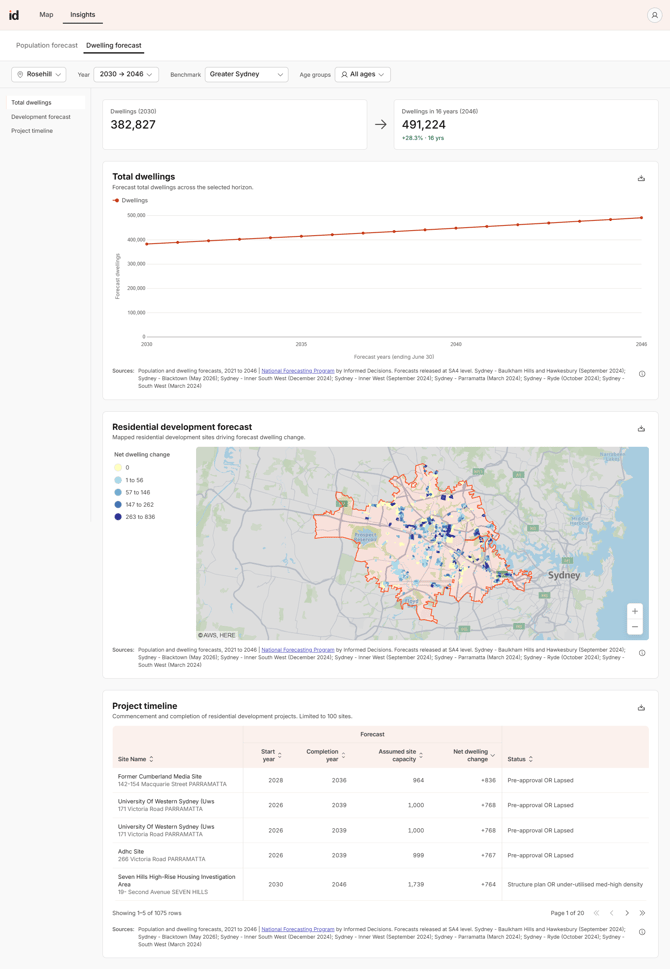
- Assess demand: use the population and dwelling forecasts to judge whether the location supports the proposed facility or investment. Consider both the current population size and the forecast trajectory across your planning horizon.
- Export your results: on each Insights section, click the download icon and choose 'Download PNG' or 'Download CSV' to use in a report or proposal. See How to export data from Placemaker.
What to Expect
You'll have a saved catchment with insights and exported materials ready for a planning report or proposal. Return to the catchment any time from the Catchments list.
Troubleshooting
- The boundary doesn't match the likely service area: edit the catchment to adjust the drive time, walk time or radius, or add and remove SA1 areas, or add and remove SA1 areas. See How to edit a catchment in Placemaker.
- You can't find the address: search by suburb or postcode, or drop a pin on the map. A new development may not appear in search yet.