![ID-logo-colour_version_2.png]](https://answers.id.com.au/hs-fs/file-2628100188-png/images/ID-logo-colour_version_2.png?height=40&name=ID-logo-colour_version_2.png)
This article walks you through logging in to the .id (Informed Decisions) Local Government Suite of tools. You can log in with your email or with your Microsoft account. There's no password to enter.
Before you begin
You'll need an existing .id account. If you haven't signed up yet, see 'How to sign up for an .id account' first.
Steps
1. Open any tool
Visit one of the .id Community Suite tools . When you interact with the page, you'll see a prompt asking you to sign up or log in.
2. Choose 'Log in'
Click the 'Log in' button on the prompt.
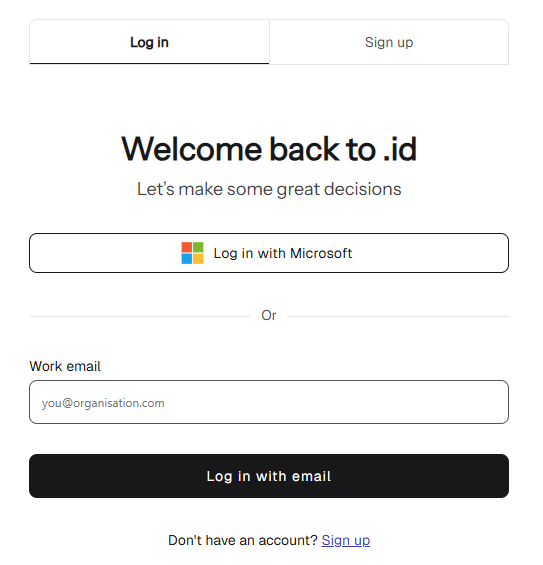
3. Pick your login method
On the login form, choose how to log in. Neither option uses a password.
- To log in with email: click 'Log in with email' and enter your email. .id will send a link to your inbox.
- To log in with Microsoft: click 'Log in with Microsoft' and sign in with your Microsoft account (the same account you use for Outlook). Skip to step 5.
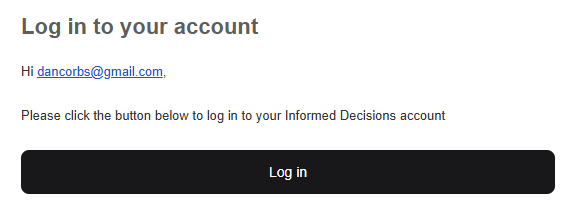
4. Open the email and click the magic link.
.id sends a single-use link to the email you used to sign up. Open the email and click the link to complete sign-in.
You'll see an avatar icon in the top right of the tool to confirm you're signed in.

What to expect
Your login session lasts 30 days, so you won't need to log in again every time you visit during that period. After 30 days, log in again with the same email or Microsoft account.
Troubleshooting
- If your email isn't recognised or the magic link doesn't work, see 'I can't sign up or log in using my email'.
- If Microsoft doesn't recognise your email or asks for admin approval, see 'I can't sign up or log in using Microsoft'.